On this page
AWS Device Monitoring
Overview
Add AWS accounts to TOS as devices to monitor and manage them. TOS monitors the AWS devices for configuration and policy changes, providing ongoing visibility into configuration and compliance.
Based on the onboarding model of your choice, configure the settings for the AWS account to monitor TOS and add it as a device. See AWS device settings and adding AWS devices.
After adding the device, you can manually import additional AWS resources, migrate domains and servers, and update the device configuration. See Managing monitored devices.
AWS device settings
The table describes the settings you can configure for an AWS device in TOS.
|
Device Setting |
Description |
|---|---|
|
Device Type |
Automatically populated. |
|
Name for Display |
The name to display for the device in SecureTrack. |
|
Domain |
Available only if you have configured your system for managing multi-domains and All Domains is currently selected. The domain to which to add the device. To change the domain after adding the device, you must migrate the device. |
|
Usage Analysis |
|
|
Enable Topology |
Collect routing information to build the
network Map. Topology options for Advanced management mode are configured when you import managed devices. |
|
VPC Import |
Determines how to import VPCs into TOS:
|
|
Cloud Organization |
Applies to Organization-based access.
|
|
Connection |
Applies to single- and cross-account access. The Access Key ID and Secret Access Key for the account from the AWS Identity and Access Management (IAM) console. |
|
ARN |
Applies to cross-account access only.
The Amazon Resource Name (ARN) identifier required to use
For more information, see Amazon AWS AssumeRole Support. |
|
Proxy |
Applies to single- and cross-account access. Connect to AWS through a proxy that requires authentication, and define the following:
|
|
Enable S3 Flow Logs |
Applies to single- and cross-account access. Use S3 flow logs for usage analysis instead of the default CloudWatch, and define the Region and S3 Bucket name. |
|
S3 Centralized Account |
Applies to cross-account access only. Seelect and define the Access Key ID and Secret Access Key as the credentials for the centralized account access. |
|
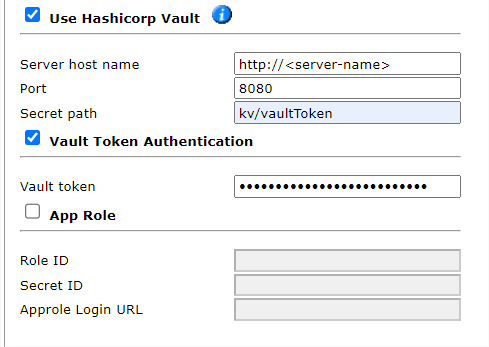
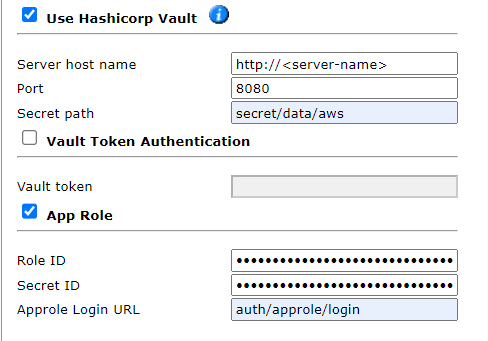
Use Hashicorp Vault |
Applies to single-account access only. Store your AWS authentication credentials in Hashicorp Vault. NOTE: Use the KV secret engine version 1. Not supported together with a proxy or Cross-Account Access (ARN).
|
|
|
|
|
|
|
| Monitoring Settings > Custom |
Define the polling frequency for SecureTrack to retrieve the configuration from each device.
|
VPC automatic import
When you add an AWS device, you can enable Automatic Import for Virtual Private Clouds (VPCs). When enabled, SecureTrack automatically detects changes to VPCs in the AWS environment (VPCs which were added, deleted, and updated), and reflects them in the device list and revision history. Changes to the VPCs are also reflected in the Map when a scheduled sync occurs or when you manually Sync the map.
When enabled, VPCs are automatically imported at 10-minute intervals.
With Automatic Import enabled, devices that were deleted from AWS are automatically deleted from the list of devices in SecureTrack, and their history is no longer available. Therefore, if your continuous integration/continuous deployment (CI/CD) pipeline regenerates VPCs, the history of the deleted VPC will not be available in the new replacement VPC. To retain revision data in SecureTrack for devices that have been deleted from your Amazon account, manually import the VPCs instead using the Import Virtual Private Cloud option.
The maximum number of VPCs for Automatic Import depends on your TOS deployment. For more information, contact Tufin Customer Support.
Add an AWS device
Add AWS devices to monitor in TOS, one device at a time or multiple devices through management accounts.
Prerequisites
Steps
-
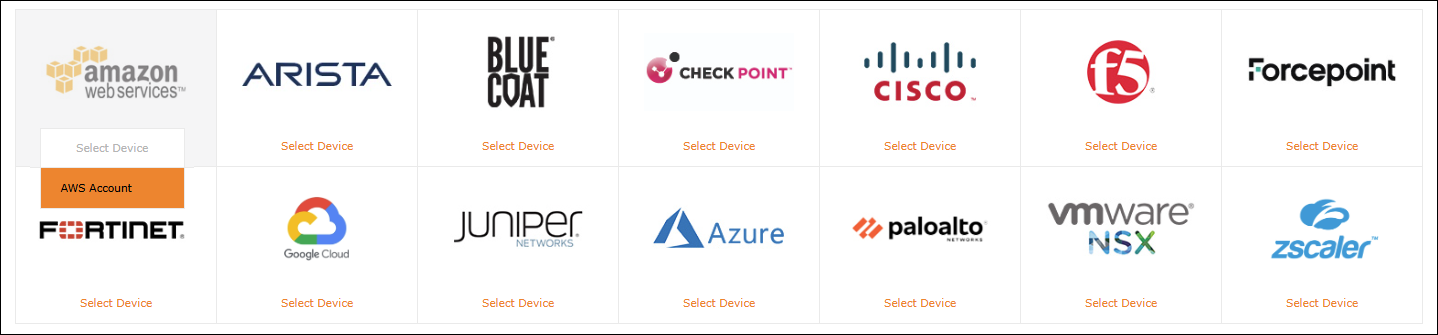
Select SecureTrack > Monitoring > Manage Devices.
-
To add a cloud organization, select Amazon > AWS Organization, and then configure the settings for the cloud organization. Continue from step 3.
-
To add the device, either individually or through cross-account, select Amazon > AWS Account.
-
Define the settings, as described in AWS device settings, and then click Save to add the device.
Managing monitored devices
After adding a device, SecureTyou can update its configuration settings or delete the device. Based on your environment, you can also import additional AWS resources such as VPCs, Transit Gateways, and Load Balancers.
AWS resources fetched with revisions
Starting in TOS 5.3, SecureTrack automatically fetches AWS resources as part of the standard revision retrieval process, for both new and existing devices.
This support is generic and applies to all AWS instance types. As part of
every revision, SecureTrack automatically fetches the Security Groups
associated with your AWS resources, regardless of the resource type they
are attached to.
For example, in addition to EC2 instances and their Security Groups, SecureTrack automatically fetches:
-
Security Groups attached to Network Load Balancers (NLBs) and Application Load Balancers (ALBs)
-
Security Groups attached to VPC Endpoints (both private and public)
Importing and migrating AWS devices
After you select the device from the list of Monitored Devices, you can:
-
Import Virtual Private Clouds
Manually import VPCs for the device.
Make sure you receive the first policy revision from the device (you can see the revision in Compare view). This may take several minutes.
-
Import Gateway Load Balancers. In multi-domain deployments, select the domain for each load balancer.
-
Import Transit Gateways (supported for Topology only). In multi-domain deployments, select the domain for each Transit Gateway.
When imported, Transit Gateways with associated attachments are displayed on the topology map. -
Import Cloud WAN: For AWS accounts, import one or more core networks to monitor and display in the Topology Map.
-
Import Network Firewalls: For AWS accounts, import one or more network firewalls, attached to VPCs or directly to the account.
-
Migrate (ST servers): Available in distributed deployments. Select the server where the device will be monitored and click Migrate.
-
Migrate (Domains): Available in multi-domain deployments. Select the domain where the device will be monitored and click Migrate.
AWS Cloud WAN import
After adding an AWS account (not AWS cloud organizations), you can import AWS Cloud WANs into the account. The import mechanism uses the AWS account's credentials and does not require separate authentication.
AWS cloud WANs require specific permissions as described in
-
Permissions
AWS cloud WANs require specific permissions in AWS as described in Advanced Path Analysis > Cloud WAN.
-
Core networks
When importing an AWS Cloud WAN, TOS displays all the core networks in the selected AWS account.
-
Domains per core network
For each core network, you can assign a SecureTrack MSSP (managed security service providers) domain, so MSSPs managing multiple customer organizations from a single TOS instance can keep each customer's core networks separated.
-
Manage Devices
After import, in the Manage Devices tree, each core network is displayed as a monitored device grouped within the parent AWS account.
-
Topology Map
After a Full Sync, core networks are displayed in the topology map with attachments, routes, network function groups (NFGs), and service insertions (send-to and send-via actions).
With segments and NFGs modeled as part of the core network, Path Analysis can trace a flow through the core network hop by hop. When a flow's source and destination segments are configured for service insertion, Path Analysis follows the traffic into the segment acting as the NFG and shows the inspection firewall as an explicit hop in the path.
For access requests, target suggestions and Verifier can test rules on the actual inspection firewall.
For details, see Topology Map.
AWS Network Firewall import
After adding an AWS account, starting from TOS 5.3, you can import AWS Network Firewalls into the account. The import mechanism uses the AWS account's credentials and does not require separate authentication.
-
Permissions
AWS Network Firewall import requires specific permissions in AWS as described in Visibility and Path Analysis > Network Firewall.
-
Single or multiple network firewalls
The import applies only to Network Firewalls. When importing Network Firewalls, TOS displays all the firewalls in the selected AWS account, and you can import single or multiple Network Firewalls.
-
Firewall policies
All firewall policies are retrieved automatically. They are associated with the account rather than with individual firewalls.
-
Domains per Network Firewall
For each Network Firewall, you can assign a SecureTrack MSSP (managed security service providers) domain, so MSSPs managing multiple customer organizations from a single TOS instance can keep each customer's Network Firewall separated.
You can also migrate to a different domain when needed. -
Manage Devices
After import, Network Firewalls attached to VPCs appear under their respective VPCs in Manage Devices. Unattached Network Firewalls appear under the AWS account.
-
Bulk operations
Import and update Network Firewall in bulk using REST API calls.
Related topics
Was this helpful?
Thank you!
We’d love your feedback
We really appreciate your feedback
Send this page to a colleague